



❓ 07. FAQ & Troubleshooting
Frequently asked questions and emergency troubleshooting procedures.
If you encounter any unexpected issues while using FlashNote, please refer to the corresponding resolution below.
📑 In This Guide
- Notes Not Found After Saving
- Images Failing to Display
- Sync Stuck in Progress
- Blog Publishing Failures
- AI Connection Issues
- Recovering After Browser Data Cleared
- Sensitive Extension Permissions (Browsing History, Clipboard) & Privacy
- Feedback & Bug Reports
1. Notes Not Found After Saving
Checklist:
- Category & Tag Filters:
- Check if a specific tag or folder filter is active in the left sidebar. Click “All Notes” at the top to display all entries;
- Search Query Clearing:
- Check if text remains in the top search input. Clear the search field to reload the complete list;
- Check “Recently Deleted” Trash:
- Verify whether the note was accidentally deleted. Open “Recently Deleted” next to Settings to restore with one click;
- Refresh IndexedDB Index:
- In rare multi-window scenarios, press Ctrl/Cmd + R inside the sidebar panel to re-fetch the database.
2. Images Failing to Display
Checklist:
- Clipped Image Offline Status:
- Web clipping fetches images and writes them to local IndexedDB. If your network disconnected mid-clipping, the image payload may not have written;
- Re-open the source page and clip the image again;
- Anti-Hotlinking Protections (Referer):
- External images pasted as direct remote URLs may be blocked by third-party referer rules;
- Instead, right-click the image on the web page, select “Copy Image”, and press Ctrl/Cmd + V to persist it as a local binary blob;
- Browser Quota Limits:
- Open “Settings” -> “Data & Backup” to verify available disk storage.
3. Sync Stuck in Progress
Checklist:
- Network Connectivity:
- Ensure your machine can connect to your WebDAV or cloud storage endpoint;
- Token Expiration:
- Cloud tokens expire periodically. Open “Settings” -> “Cloud Sync” and click “Re-authorize”;
- Clear Deadlocks:
- If the sync spinner spins indefinitely, click the indicator and select “Force Reset Sync Lock” to release locks safely.
4. Blog Publishing Failures
Checklist:
- Inspect Readiness Gate:
- Check if the top status bar displays
Blocked; - Click the Blocked badge for details:
- Slug Conflict: The slug matches an existing post. Change the slug to resolve;
- Missing FrontMatter: Required fields (e.g. title) are missing;
- Check if the top status bar displays
- Directory Permissions Expired:
- File System Access permissions require periodic re-approval across browser sessions. Click “Allow Access” when prompted.
5. AI Connection Issues
Checklist:
- 429 Rate Limits / Quotas:
- If you receive
429 Too Many Requests, ensure you have a “Fallback Model” configured for automated handover, or wait 1–2 minutes before retrying;
- If you receive
- Endpoint Format:
- Ensure base URLs end properly (e.g., without double slashes or missing
/v1); - Ensure your API key has no leading or trailing whitespace;
- Ensure base URLs end properly (e.g., without double slashes or missing
- CORS Headers:
- When using self-hosted proxies, ensure the server returns
Access-Control-Allow-Origin: *.
- When using self-hosted proxies, ensure the server returns
6. Recovering After Browser Data Cleared
Clearing browser cache with “Cookies and other site data” selected can purge local IndexedDB databases.
Recovery & Prevention:
- One-Click Restore from ZIP/JSON:
- Open “Settings” -> “Data & Backup” -> “Restore Backup”, select your recent backup, and restore notes and images in seconds;
- Enable Cloud Differential Sync:
- With WebDAV or cloud sync configured, reconnecting credentials downloads all notes from the cloud automatically;
- Preventive Measure:
- When clearing browser data, uncheck “Cookies and other site data” to preserve extension storage permanently.
7. Sensitive Extension Permissions (Browsing History, Clipboard) & Privacy
When installing or updating FlashNote from browser web stores, you may see a prompt requesting several permissions:
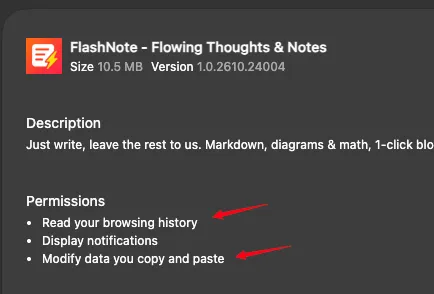
Privacy Reassurance: FlashNote never steals, monitors, or uploads your personal data or browsing history!
FlashNote is architected on a strict “Local-First” sandbox model. All your notes, clipped content, images, and documents are stored exclusively inside your browser’s local sandbox database (IndexedDB). There are zero tracking scripts, zero background data analytics, and zero unauthorized telemetry.
Why Does the Browser Request These Permissions?
Chromium-based browser permission prompts use broad, standardized warning templates that often sound alarming. Here is the technical rationale and real-world necessity for each permission requested by FlashNote:
- “Read your browsing history”
- Underlying API:
tabspermission. - Actual Purpose: Strictly required for the Web Clipper feature. When you open FlashNote while browsing a website, the extension needs to fetch the page title and URL of the active tab to automatically append source attribution to your note, saving you from tedious manual copy-pasting.
- Safety Boundary: We never scan, traverse, or inspect your historical web visits. The permission is only invoked when you actively initiate a clip action on the single current tab.
- Underlying API:
- “Modify data you copy and paste”
- Underlying API:
clipboardRead&clipboardWritepermissions. - Actual Purpose: Powers smart formatted copy & paste workflows.
- Exporting & Sharing: When you click “Copy as Markdown” or “Copy as Rich Text / Image”, the extension writes the rendered output directly into your system clipboard;
- Quick Capture: When triggering shortcut keys to capture clipboard contents into a new flash note, the extension reads the recently copied snippet.
- Safety Boundary: Zero background monitoring. FlashNote only interacts with your clipboard on direct, user-triggered actions (clicking a button or pressing a configured hotkey). It never listens in the background or reads sensitive credentials like passwords or tokens.
- Underlying API:
- “Display notifications”
- Actual Purpose: Delivers unobtrusive native system notifications when cloud differential sync finishes, batch exports complete, or scheduled task reminders expire.
8. Feedback & Bug Reports
If this guide does not resolve your problem, we are here to help:
-
📧 Official Support:
[email protected] -
💬 GitHub Discussions: FlashNote Community
-
🐞 Information to Include in Bug Reports:
- Browser version and OS (e.g. Chrome 126 / macOS);
- Brief reproduction steps;
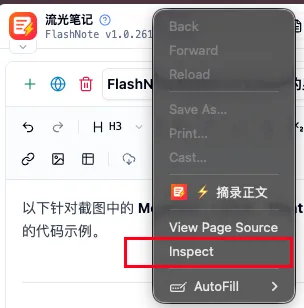
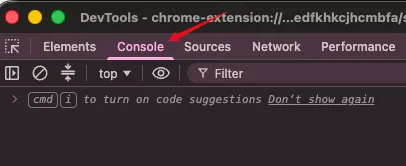
- Console error logs or screenshots (do not simply press F12; right-click anywhere inside the FlashNote extension interface, select Inspect, and switch to the Console tab in DevTools):
Return to main directory: