
⚙️ 06. Settings & Customization
Centralized preference reference, tailored for your reading needs.
BookFun 2.2 provides an exquisite, restrained customization system. This guide covers interface themes, haptic sound effects, bookshelf metadata display, cover scraper engine priorities, chapter splitting dictionaries, and database health maintenance.
📑 In This Guide
- Light/Dark Modes Linked to Reader Themes
- Page-Turn Sound Effects & Haptic Toggle
- Bookshelf Display Items & Information Density
- Cover Search Engine Priorities & Complete Deactivation
- Chapter Splitting & Regex Proofreading Dictionaries
- Safe Cache Cleanup & Database Self-Healing Checks
1. Light/Dark Modes Linked to Reader Themes
Under “Profile” -> “System Settings” -> “Appearance”, configure your theme mode:
- 3 Visual Modes:
- Match System (Recommended): Bright and crisp during daytime; automatically shifts dark at night;
- Minimal Light: Stays crisp white, ideal for bright reading rooms;
- Immersive Dark: Persistent dark gray/black, optimized for OLED power saving;
- Thoughtful Theme Linkage:
- When iOS switches to dark mode, reader page backgrounds automatically transition to night pure black;
- When iOS returns to light mode, reader pages return to comfortable parchment;
- Temporarily switching to a green eye-care theme inside the reader will never disrupt your global iOS system appearance.
2. Page-Turn Sound Effects & Haptic Toggle
Under “System Settings” -> “General Settings”:
- Realistic Page-Turn Audio: Subtle, soft physical paper friction sound when turning pages;
- Haptic Tactile Feedback: Delicate, comfortable vibrations when highlighting text or snapping floating capsules to edges; toggle off anytime for silent reading.
3. Bookshelf Display Items & Information Density
Under “System Settings” -> “Bookshelf Display Settings”:
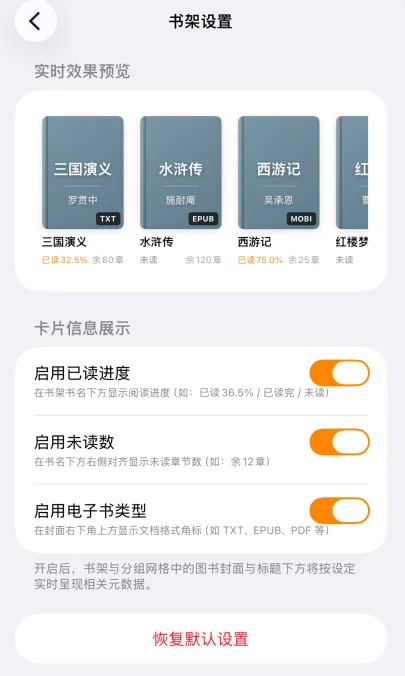
- Cover Bottom Information: Toggle reading progress percentage and unread chapter badges on book covers;
- New Chapter Red Dot: Books updated via cloud drive auto-sync show a badge in the top-right corner;
- Zero Lag on Large Libraries: Highly optimized to ensure silky-smooth 60fps scrolling whether you have 3 books or 500 books.
4. Cover Search Engine Priorities & Complete Deactivation
Under “System Settings” -> “Cover & Metadata Scraping”:
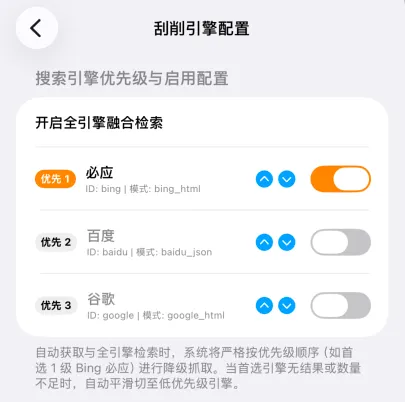
- Adjust Engine Priorities:
- Reorder priority across Baidu Images, Microsoft Bing, and Google Images;
- When searching, queries follow priority order, cascading to secondary engines if no images are found;
- Complete Deactivation (100% Offline):
- If you are data-sensitive or in a completely offline environment, toggle all search engines off;
- With all engines disabled, network scraping is completely halted—zero external network requests are sent, and books use clean local default covers.
5. Chapter Splitting & Regex Proofreading Dictionaries
Downloaded web novels often carry inconsistent chapter titles or promo snippets:
5.1 Intelligent Chapter Splitting
- Built-in recognition rules (“Chapter X”, “Vol. X”, “Prologue/Epilogue”);
- Custom regex support for non-standard formats;
- Short Dialogue Protection: Defaults to chapters with at least 200 words, avoiding false chapter splits on dialogue mentioning chapter numbers.
5.2 Text Proofreading
- Automatic Promo Filtering: Strips out ad suffixes like
"Downloaded from XXX"or"Click here to update"; - Side-by-Side Comparison: Review corrections in the text drawer before applying changes.
6. Safe Cache Cleanup & Database Self-Healing Checks
Under “Profile” -> “System Settings” -> “Storage & Maintenance”:
6.1 Safe Cleanup of Temporary Debris
- Scan Temporary Cache: View disk space occupied by web cover candidates and unzip caches;
- Safe Cleanup: Tapping “Clear Cache” removes temporary thumbnails only—never deleting your eBook source files, milestones, or notes!
6.2 Automatic Database Health & Index Rebuilding
- Lightweight Boot Check: Runs a quick check at app cold launch (maximum once daily) without slowing startup;
- One-Tap Index Rebuilding: If search feels sluggish, tap “Rebuild Search Index” to re-index all books in 1–2 seconds;
- Deletion Management: Toggle between “Standard Delete (Keep History)” and “Permanent Deletion”, with options to purge historical soft-deleted records.
Tip
Continue exploring with:
- 📁 02. Bookshelf & Groups: Bookshelf dual-views and batch management;
- ☁️ 05. Sync & Backup: iCloud roaming and secure backups.