
☁️ 05. Sync & Backup
Keep data completely in your own hands; effortless migration to a new device.
Category: Data Sync · Estimated Reading Time: 4 minutes
Carefully collected books, daily milestones, and thoughtful reading notes should never be lost when changing devices or resetting iOS. BookFun 2.2 provides private multi-device sync, cloud drive serial updates, and one-tap archive migration. This guide covers how to sync, how to back up, and safe recovery practices.
📑 In This Guide
- Automatic Seamless Sync Across Apple Devices
- Connecting Home NAS or Baidu Drive for Auto-Sync
- Local Data Backup & Restore: Selective Strategies
- Shareable Backup: Book Export & Version Migration
- Core Breakdown: What is Included in Each Mode?
- How to Safely Restore Backups Without Accidental Overwrites
1. Automatic Seamless Sync Across Apple Devices
If you read across iPhone, iPad, or Mac:
- Silent Progress Synchronization: Log in with the same Apple ID on all devices and ensure BookFun is toggled on in iCloud settings. Your chapter and sentence milestones sync automatically—no manual uploads needed;
- Unified Bookshelf & Highlights: Group folders, ratings, highlights, and thoughts roam effortlessly across your devices;
- 100% Private & Secure: All data travels via your private Apple iCloud container, never passing through third-party servers.
2. Connecting Home NAS or Baidu Drive for Auto-Sync
Have a Synology, QNAP, or personal NAS, or use Baidu Drive?
2.1 Easy Network Storage Connection
- Go to “Profile” -> “System Settings” -> “Cloud & Network Storage”;
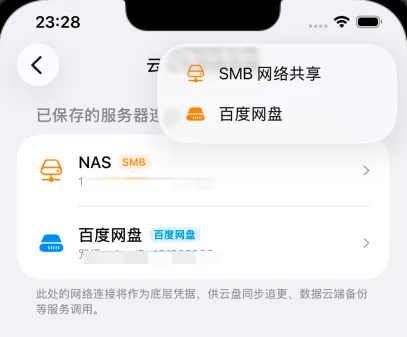
- Tap “Add Connection”, supporting SMB Local Network Sharing, WebDAV, or Baidu Drive;
- Enter local IP or authenticate; credentials are encrypted securely in the iOS Keychain.
2.2 Serial Updates & Directory Tracking
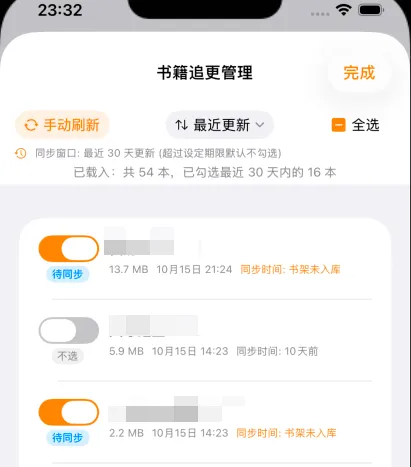
Under “Serial Update Management”, track incoming chapters across your remote drive:
- Smart Sync Window: Set a sync window (e.g. default “Updated within 30 days”); scans intelligently pre-select recently updated books, skipping decades-old archives;
- Clear Status Badges:
- Displays file size, modification date, and status (e.g. “Pending · Not on Shelf” or “Synced · 10 days ago”);
- Toggle states easily: orange for “Pending Sync”, gray for “Skip”;
- One-Tap Ingestion: Tap “Refresh”, “Select All”, or sort by “Recently Updated”. Tap “Done” in the top-right to ingest newly appended chapters in bulk.
3. Local Data Backup & Restore: Selective Strategies
Create a complete offline data snapshot via “Profile” -> “System Settings” -> “Backup & Restore” -> “Local Data Backup & Restore”:
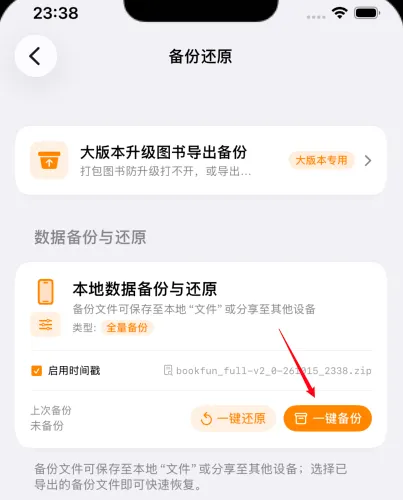
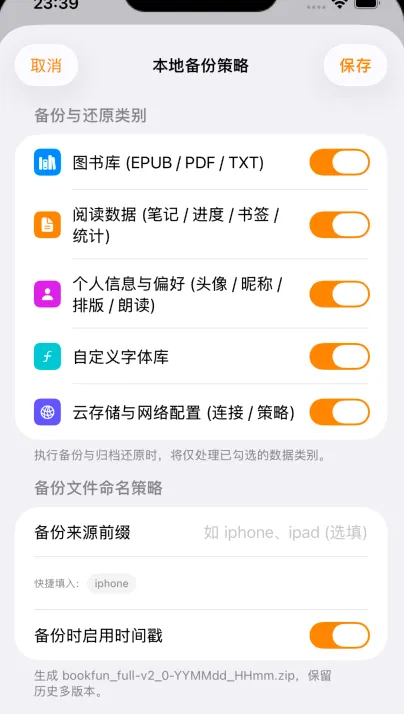
- Selective Backup Strategies: Tap the settings gear to toggle specific categories:
- 📖 eBook Library: All EPUB, PDF, TXT source files;
- 📄 Reading Data: Bookmarks, highlights, notes, and milestones;
- 👤 Profile & Preferences: Avatar, nickname, typography settings, and TTS preferences;
- 🔤 Custom Fonts: User-imported Chinese and custom fonts;
- 🌐 Cloud & Network Configurations: Saved WebDAV/SMB connection profiles and sync policies.
- Custom Naming & Timestamps: Set device prefix tags (e.g.
iphone,ipad) and enable timestamps to generate standardized archives likebookfun_full-v2_0-20261015_2338.zip; - One-Tap Export & Restore: Tap “Backup Now” to save to the Files app or share via AirDrop. Tap “Restore Now” to restore.
4. Shareable Backup: Book Export & Version Migration
To batch-share books or export before major software updates, use “Shareable Backup (Version Upgrade Export)”:
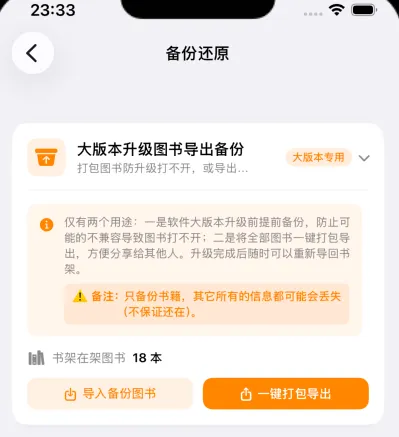
Designed specifically for two use cases:
- One-Tap Library Sharing: Export all active eBooks into a single zip archive for friends or desktop archiving;
- Pre-Upgrade Safeguard: Export prior to major architecture overhauls to ensure book access is never compromised.
Data Scope Limitations:
- Raw Book Files Only: Exports original formats (TXT, EPUB, etc.);
- TXT Has No Embedded Cover: Plain-text files do not support embedded cover images;
- Notes & Milestones Are NOT Included: This mode only packages raw book files. Bookmarks, highlights, and thoughts are omitted. For full preservation, use “Local Data Backup” or iCloud sync.
5. Core Breakdown: What is Included in Each Mode?
A clear comparison between iCloud Sync, Cloud Drives, and Local Backup Archives:
| Data Item | Apple iCloud Sync | Cloud Drive Ingestion | Local Backup Archive (.zip) |
|---|---|---|---|
| Title, Author & Synopsis | ✅ Auto-synced | ❌ Reads source file | ✅ 100% Packaged |
| Bookshelf Structure & Folders | ✅ Auto-synced | ❌ Remote dir mapped | ✅ 100% Packaged |
| Sentence-Level Reading Progress | ✅ Real-time sync | ❌ Not written back | ✅ 100% Packaged |
| Highlights & Notes | ✅ Real-time sync | ❌ Not written back | ✅ 100% Packaged |
| Custom Covers | ✅ Thumbnail sync | ❌ File cover only | ✅ High-res included |
| eBook Source Files | ⚠️ Local cache | ✅ Kept on remote NAS | ✅ Full offline archive |
| Custom Fonts | ❌ Import per device | ❌ Not included | ✅ Fully packaged |
| Settings & Ad Rules | ✅ Auto-synced | ❌ Not included | ✅ Fully packaged |
6. How to Safely Restore Backups Without Accidental Overwrites
6.1 Smart Defense & Corruption Tolerance
Restoration performs automatic health checks:
- Corrupted or empty archives are blocked safely;
- If individual files are damaged in a bulk restore, BookFun skips them gracefully without aborting the entire process.
6.2 Preventing Accidental Overwrites
Restoring an older archive may overwrite recent milestones on your current device.
Strong Recommendation: Always tap “Backup Now” on your current device before restoring an older archive!
- On your new or reset device, go to “Profile” -> “System Settings” -> “Data & Backup”;
- Tap “Restore from Backup” and select the archive file;
- Choose your restoration mode:
- Smart Merge (Recommended): Ingests missing books and notes while keeping current device milestones;
- Full Mirror Overwrite: Resets the app to match the exact snapshot state of the backup;
- In seconds, your shelf, covers, and notes will be restored!
Continue exploring with:
- ⚙️ 06. Settings & Customization: Cover engines and safe cache maintenance;
- ❓ 07. Troubleshooting & FAQ: Diagnosing sync latency.