
📖 03. Reader & Typography
Guide to refined reading controls and exquisite, comfortable typography.
Category: Reader Typography · Estimated Reading Time: 4 minutes
The essence of reading lies in comfortable typography, natural page turns, and relaxed eyes. BookFun 2.2 brings publication-grade paper book aesthetics and thoughtful navigation gestures. This guide details typesetting craftsmanship, slide/flip feel, the “Back to Position” jump capsule, notes, and eye-care palettes.
📑 In This Guide
- Publication-Grade Typography: Punctuation & Alignment
- Page-Turn Feel: Horizontal Slide vs. Horizontal Flip
- Seamless Chapter Transitions: Continuous Reading
- Table of Contents, Full-Text Search & Pinned Volumes
- Sentence Highlighting, Thoughts & One-Tap Notes Export
- Never Lose Your Spot: “Back to Position” Capsule
- Thoughtful Layout for Large Images & Headings
- Scientific Eye-Care Palettes & Blue-Light Filter
- Batch Correction: Quick Typos & Flaw Fixing
1. Publication-Grade Typography: Punctuation & Alignment
Ordinary readers often produce loose, ragged text. BookFun adheres strictly to formal physical publication typesetting rules:
- Natural Paragraph Indentation: Clean, proper indent at the start of each paragraph;
- Strict Punctuation Wrap Rules (Kinsoku Shori / Line-Break Control):
- Commas, periods, closing quotes, and question marks never hang alone as the first character of a new line;
- Opening brackets and quotes never linger as the final character of a line;
- Orphan & Widow Control: Prevents awkward single-word lines dangling onto the next page;
- Full Justification on Both Margins: Micro-adjusts letter spacing and spaces based on character metrics to keep page margins straight and publication-ready.
2. Page-Turn Feel: Horizontal Slide vs. Horizontal Flip
Tap the screen center to summon the menu, then navigate to “Typography Settings → Page Turn Mode” to choose:
| Mode | Visual & Touch Sensation | Best Scenarios |
|---|---|---|
| Horizontal Slide | Frictionless, smooth lateral push transition without visual dizziness | Fast browsing, marathon reading sessions |
| Horizontal Flip | Layered book-leaf reveal with firm tactile boundary feedback | Immersive, page-by-page literature reading |
3. Seamless Chapter Transitions: Continuous Reading
Reading novels should never be interrupted by awkward chapter-boundary loading spinners.
In BookFun, chapters flow naturally:
- Zero Boundary Friction: Finishing the last page of a chapter transitions smoothly into the next chapter just like turning a regular page;
- Unbroken Immersion: No waiting spinners or jarring prompts keep your attention locked into the story.
4. Table of Contents, Full-Text Search & Pinned Volumes
Effortlessly browse outlines, locate content, or jump chapters in massive epics:
4.1 TOC Panel & Multi-Volume Navigation
- Reading Progress & “Go to Current”: The top of the panel displays progress stats (e.g.
[Read 3, 384 Left]); tap the “Go to Current” crosshair icon to instantly center the current chapter; - Volume Header Pinning & Word Counts: Multi-volume epics are structured hierarchically with sticky volume headers upon scrolling; word counts are shown for each chapter;
- Instant Chapter Filter: Type in the top search box to filter chapters by name or number immediately.

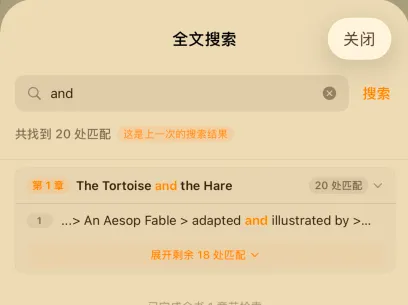
4.2 High-Performance Full-Text Keyword Search
- Sub-Millisecond Search: Enter character names, places, or keywords for instant full-text results across the entire book with match counts;
- Chapter Folders & Highlight Snippets: Results are organized by chapter with context snippets and highlighted keywords.
4.3 Direct Search Jump & “Back to Position” Capsule
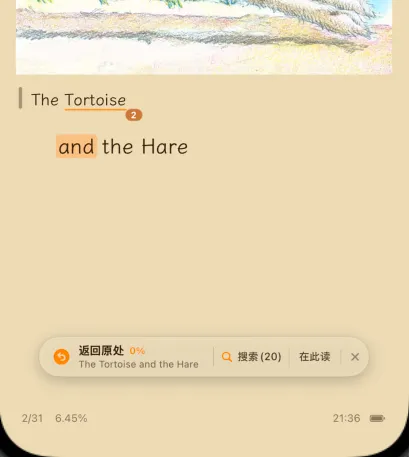
- Tap to Jump to Sentence: Tapping any result navigates straight to that page with the keyword highlighted;
- Floating Anti-Lost Capsule: A capsule bar appears at the bottom. Tap “Back to Position” to return to your original page, or tap “Read Here” to continue reading from the searched page.
5. Sentence Highlighting, Thoughts & One-Tap Notes Export
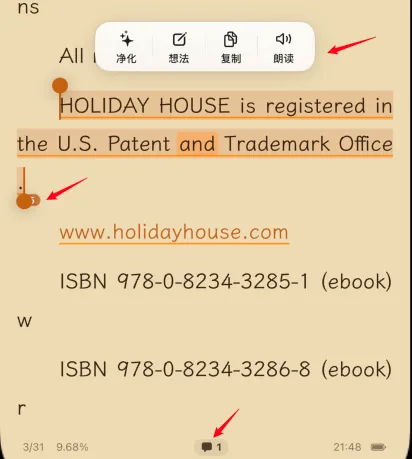
- Long-Press Highlight: Long-press any sentence, drag the boundary handles, and choose your favorite tint (Bright Yellow, Fresh Green, Soft Pink, Serene Blue);
- Capture Moments & Thoughts: Tap “Add Thought” to jot down reflections; a dotted underline marks the sentence;
- Full Book Notes Aggregation & Export: Switch to “Notes” in the TOC panel to view all highlights and thoughts in one place, with one-tap export to a clean Markdown document.
6. Never Lose Your Spot: “Back to Position” Capsule
Jumping across chapters to check character references often causes readers to forget their original page number.
BookFun 2.2 solves this with the “Anti-Lost Jump Capsule”:


- Return in One Tap: However far you jump, a capsule appears at the bottom. Tap “Back to Position” to snap right back;
- Commit to New Spot: If you prefer reading forward from the target, tap “Read Here”;
- Automatic Auto-Commit on 3 Page Turns: Turning 3 or more consecutive pages at the new spot automatically adopts it as your active progress;
- Safe Exit Without Pollution: Exiting the reader during a jump will safely restore your original reading spot upon reopening!
7. Thoughtful Layout for Large Images & Headings
- Adaptive Image Scaling: Large illustrations automatically scale to available viewport height without falling off-screen;
- Smart Heading Height Calculation: No matter how large you set chapter titles, sufficient margin is reserved below, ensuring the first sentence of the body text is never cropped.
8. Scientific Eye-Care Palettes & Blue-Light Filter
- 4 Classic Textures:
- 📜 Parchment: Warm and nostalgic, reducing harsh reflections;
- 🌿 Eye-Care Green: Gentle leafy tone for long reading sessions;
- 🌙 Night OLED Pure Black: Zero-emission pixels for true eye protection in the dark;
- ⚪ Paper White: Crisp, modern bright white;
- Blue-Light Kelvin Slider: Adjust color warmth like a physical optical lens to eliminate high-energy blue rays;
- Deep Software Dimming: Allows dimming beyond the iPhone’s minimum hardware brightness for comfortable bedtime reading.
9. Batch Correction: Quick Typos & Flaw Fixing
Scanning artifacts, typos, or repeated OCR glitches can be cleaned up effortlessly:

- Full-Book Batch Replacement: Batch correct and replace specific words, symbols, or typos across the entire book;
- Side-by-Side Comparison: Long-press text and select “Batch Correction” to preview before-and-after text changes in a comparison drawer.
Continue exploring with:
- 🎙️ 04. Audiobook & TTS: High-fidelity speech and floating mini capsule;
- ☁️ 05. Sync & Backup: Seamless cross-device synchronization.