
🚀 01. Getting Started
Essential essentials when opening the app for the first time.
Category: Quick Start · Estimated Reading Time: 3 minutes
Welcome to BookFun 2.2! This guide gets you up to speed within 3 minutes: interface layout, adding your first book, page-turn controls, and one-tap audio listening.
📑 In This Guide
- Understanding the 3 Bottom Tabs: Bookshelf, Store, Profile
- How to Add Your First Book
- Handling Duplicate Book Imports
- Opening Books & Smooth Page Turning
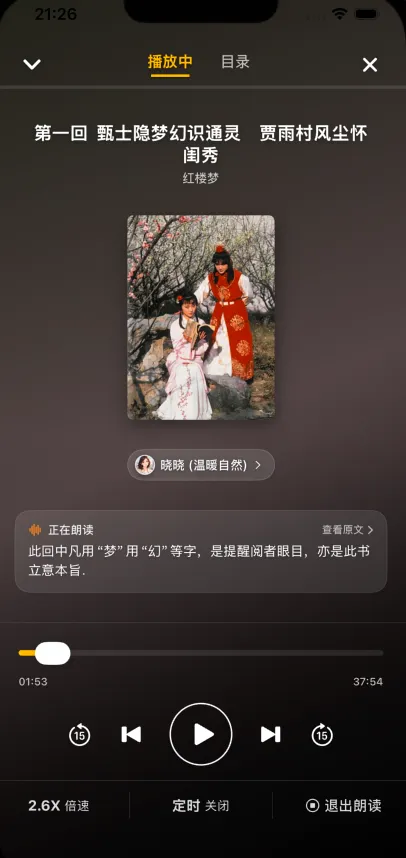
- Activating TTS Narration & Floating Capsule
- Beginner FAQ Quick Lookup
1. Understanding the 3 Bottom Tabs: Bookshelf, Store, Profile
The bottom navigation bar provides three core destinations:
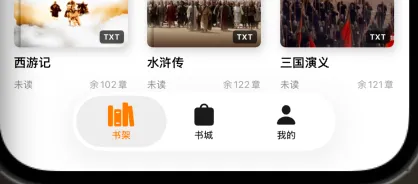
- 📚 Bookshelf: Your personal sanctuary. Switch between 3D Bookshelf and Clean List views, organize by folders, and draft your own Markdown columns;
- 🏬 Store: Featured literature selections and book discovery to explore new reads;
- 👤 Profile: Track reading time analytics, access the Help Center, connect cloud drives for serial auto-sync, and manage full backups.
2. How to Add Your First Book
2.1 In-App File Picker Import
- Open BookFun and go to the bottom Bookshelf tab;
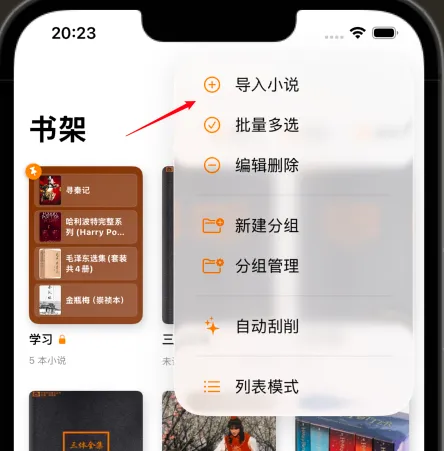
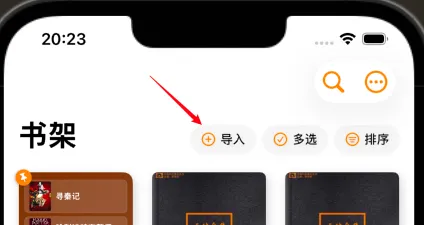
- Tap the ”+” button in the top-right corner;
- Select your downloaded eBook files (single or multiple files at once);
- Tap “Open”. Within seconds, BookFun parses chapters, generates a beautiful cover, and places the new book at the top of your bookshelf.
2.2 Direct Share Import from External Apps
You can also long-press eBook files in the system “Files” app, messaging apps, or browsers to import directly via the system Share sheet:
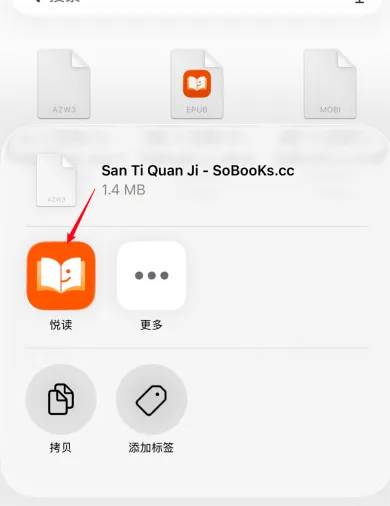
- Long-press in Files App: Locate the book in the iOS Files app, long-press the file, tap Share, and select BookFun;
- Safari or Chat Apps: When downloading an eBook in Safari or receiving a book file in chat apps, tap the share icon and pick “Open in Another App” -> BookFun;
- AirDrop: Transfer eBooks via AirDrop from a Mac or another iPhone/iPad and choose BookFun on the incoming prompt;
- iPad Drag & Drop: Open the Files app in Split View, drag the eBook directly into the BookFun bookshelf, and release.
2.3 Supported eBook Formats
BookFun natively supports all major reading formats:
- TXT: Plain text novels with automatic encoding detection (zero garbled text) and intelligent chapter splitting. Multi-million-word files load instantly with zero lag;
- EPUB: Modern publication standard with rich typography, embedded styles, tables of contents, and illustrations;
- MOBI / AZW3: Classic Kindle formats for pristine reading;
- Markdown (.md): Ideal for technical notes and serial writings with code syntax highlighting and tables.
3. Handling Duplicate Book Imports
When importing a book with the same name as one already on your shelf, BookFun provides friendly options:
- Keep Both (Recommended): Appends a number (e.g.
Three-Body (1)), keeping both editions independent; - Replace Existing Book: Updates the file while fully preserving your current reading progress, bookmarks, highlights, and notes;
- Skip This Book: Discards the duplicate. Check “Remember My Choice” to auto-skip duplicates when importing in bulk;
- Corrupted File Detection: Zero-byte or incomplete downloads are caught immediately with an alert to prevent shelf clutter.
4. Opening Books & Smooth Page Turning
Tap any book cover on your shelf to enter the immersive reader.
4.1 3×3 Grid Gestures & Customizable Touch Zones
During reading, the screen is divided into an intuitive 3×3 grid of touch zones, making single-handed reading effortless:
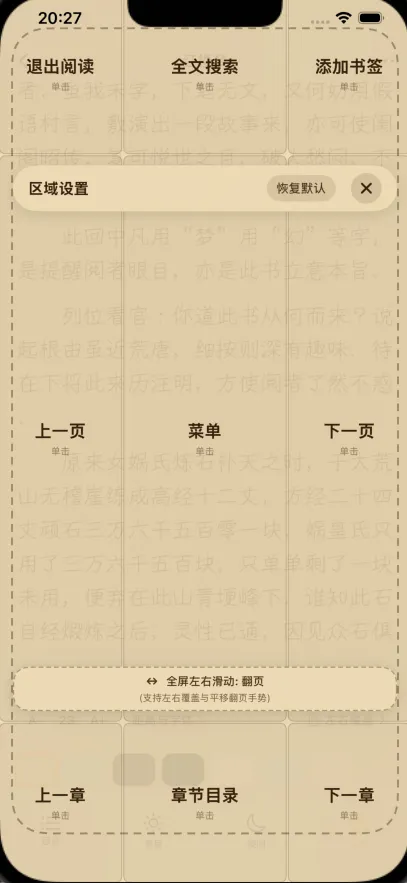
Default Gestures:
- Left Zones (Top-Left / Mid-Left / Bottom-Left): Previous page (or swipe right);
- Right Zones (Top-Right / Mid-Right / Bottom-Right): Next page (or swipe left);
- Center Zone: Show / hide reading control menus.
Customizing Touch Actions:
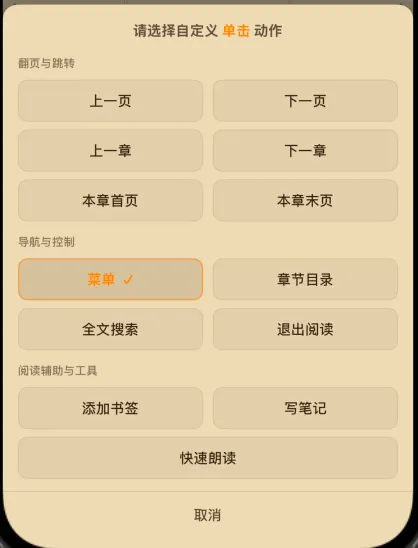
In Reader Settings → Page Turning & Gestures / Touch Zones, you can configure custom single-tap actions for each of the 9 zones:
- 📖 Navigation & Jumps: Previous/Next Page, Previous/Next Chapter, Chapter Start/End;
- 🧭 Controls: Menu, Table of Contents, Full-Text Search, Exit Reader;
- 🛠️ Reading Tools: Add Bookmark, Create Note, Quick Audio TTS.
4.2 Appearance & Typography Settings
Tap the screen center to summon the menu for quick personalization:
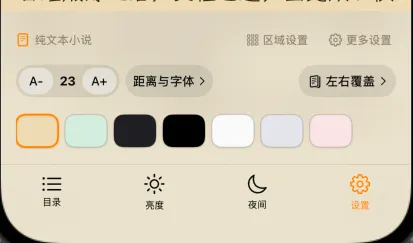
- 📑 Contents & Notes: Browse full chapter tree, jump to target chapters, and view highlights and thoughts;
- Aa Font & Layout: Resize fonts (12–32 pt), adjust line and letter spacing, and pick your favorite typeface;
- 🎨 Eye-Care Themes: One-tap switch between Parchment (soft nostalgia), Eye-Care Green (relaxing for long sessions), Night OLED Pure Black (energy-saving & comfortable), or Paper White;
- 🔄 Page Transitions: Choose between crisp “Horizontal Slide” or layered “Horizontal Flip” page transitions.
5. Activating TTS Narration & Floating Capsule
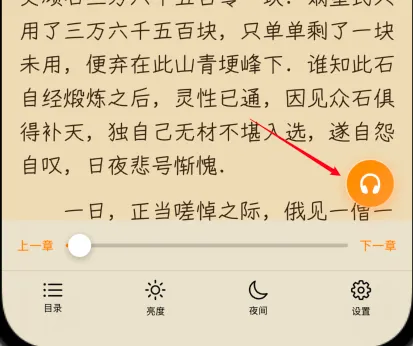
Tired eyes? Switch to audio narration at any time:
- One-Tap Audio Launch: Tap the screen center to summon the menu, then tap the prominent orange headphone icon 🎧 on the right to start voice reading immediately;
- Smooth Follow-Along Highlighting: The currently spoken sentence is subtly highlighted, and the viewport glides gently to keep the active line comfortably centered;

- Draggable Mini Floating Capsule:
- Switching to the bookshelf or other tabs reveals a compact floating audio capsule;
- Drag it anywhere on screen. Releasing it causes it to snap neatly to the nearest edge without obstructing buttons;
- Tap the outer ring to play/pause, or tap the center to expand the full audio player console.
6. Beginner FAQ Quick Lookup
- Q: Why hasn’t my imported book appeared on the shelf?
A: Pull down on the shelf list to refresh. For massive TXT epics, chapter splitting takes 1–20 seconds in the background. - Q: Will TXT files show garbled text?
A: BookFun embeds an automatic encoding recognition engine (UTF-8, GB18030, GBK, etc.) for instant, zero-configuration reading. - Q: Why does audio stop when the screen locks?
A: Check if “Low Power Mode” is enabled on iOS, and verify that “Background App Refresh” is enabled in iOS Settings → BookFun.
Continue exploring with:
- 📁 02. Bookshelf & Groups: Folder classification, card attributes, and deletion protection;
- 📖 03. Reader & Typography: CoreText typography, “Back to Position” capsule, and exported notes.