
📁 02. Bookshelf & Groups
Core guide for organizing, categorizing, writing, and securing your books.
Category: Book Management · Estimated Reading Time: 4 minutes
As your eBook library grows, how do you keep it neatly organized and quickly find what you want? BookFun 2.2 provides a sanctuary experience just like a real personal library. This guide covers dual-view layouts, folder grouping, attribute inspection and scraping, and automated progress restoration.
📑 In This Guide
- 3D Study Room & Clean List Views
- Organizing Books with Group Folders
- Quick Search, Sorting, and Hiding Books
- Long-Press Book Card: Attributes, Scraping & Quick Actions
- Creating Your Own Markdown Books
- Key Safety Boundaries: Removing from Groups, Hiding & Deletion Protection
1. 3D Study Room & Clean List Views
Tap the view-switch icon in the top-right corner to toggle between two layouts at any time:
- 3D Skeuomorphic Study Room:
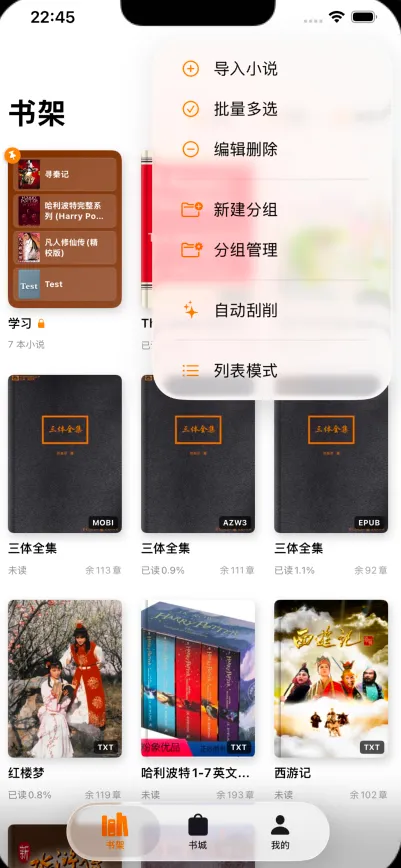
- Classic 3-column grid layout where every book features realistic spine thickness, lighting, and soft shadows;
- Covers are proportioned to publishing-standard golden ratios, resembling an elegant private library;
- Compact Detailed List:
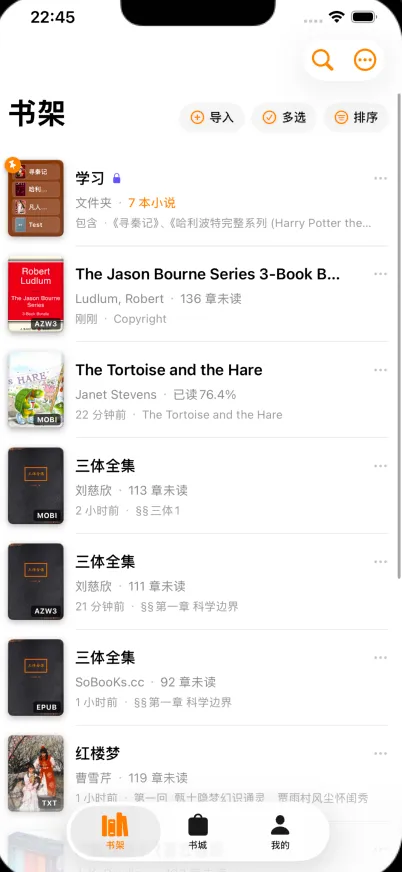
- Clean single-column layout displaying cover thumbnail, full title, author, file size, reading progress percentage, and last reading date;
- Perfect for quickly scanning and finding titles when your library reaches hundreds of books.
2. Organizing Books with Group Folders
When your bookshelf grows crowded, use Group Folders to keep books organized:
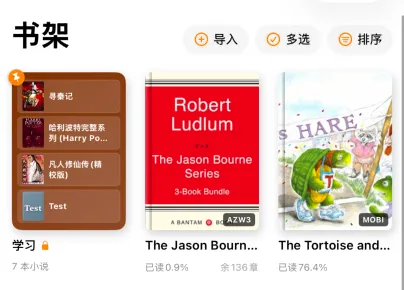
2.1 Cute 2x2 Mini Cover Thumbnails
- Folders feature an intuitive design: the card neatly displays mini covers of 4 internal books, with a badge showing total book count;
- Folders live side-by-side with individual books on the shelf, allowing flexible custom ordering;
- When books are added or removed, the mini cover preview updates automatically.
2.2 Smooth Secondary Shelf Transition
- Tap any folder card to enter the dedicated sub-shelf with smooth transition animations;
- Inside, you can sort, search, or batch-manage that specific collection.
2.3 Creating Folders & Moving Books
- Create Folder: Tap the “New Group” icon at the top of the shelf and name it (e.g. “Sci-Fi Classics”, “History & Philosophy”, “Bedtime Audio”);

- Move Books Inside:

- Long-press a book cover, tap “Move to Group”, and select the target folder.
3. Quick Search, Sorting, and Hiding Books
- 5 Sorting Orders (Ascending / Descending Toggle):
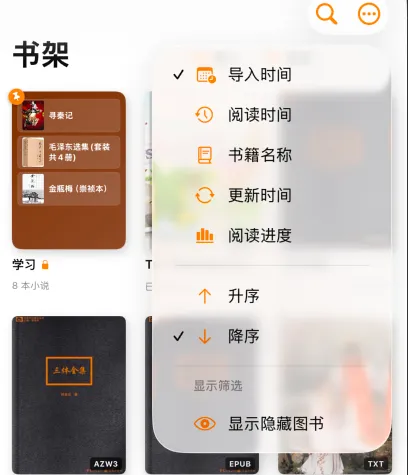
- Import Date: In order of addition to the shelf;
- Last Read: Recently read books pinned to the front;
- Title: Alphabetical title sorting;
- Update Time: Based on latest file modification or serial chapter sync;
- Reading Progress: Instantly see what is finished and what is unread;
- Tap to toggle between Ascending and Descending order;
- Instant Search: Tap the magnifying glass and type a book title or author; results appear as you type;
- Hide Books: Don’t want a specific book cluttering the main shelf? Long-press and tap “Hide”. Enable “Show Hidden Books” in the sorting filter menu at any time to reveal and unhide it.
4. Long-Press Book Card: Attributes, Scraping & Quick Actions
Long-press any book on your shelf to summon a comprehensive attributes panel:
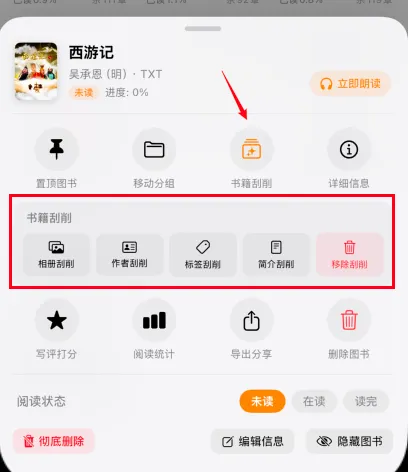
- 🎧 Listen Now: Start audio narration instantly from the top-right button without opening the reader;
- ✨ Scrape Metadata: Intelligently fetch or refresh covers, author bio, tags, and synopses;
- 📌 Pin to Top: Keep your current favorite or most-read book pinned to the front;
- 📁 Move Group: Easily reclassify into an existing folder;
- ℹ️ Details & Edit: Inspect file format, size, character encoding; edit title and author;
- ⭐ Rating & Color Tags: Score books and assign tags like
#MustRead; - 📊 Reading Stats: Open the dedicated statistics card showing total reading hours and progress;
- 🔖 Reading Status: One-tap toggle between “Unread”, “Reading”, or “Completed”;
- 📤 Export & Share: Share the eBook file or exported note highlights with friends;
- 🗑️ Delete & Hide: Choose between “Hide Book”, “Delete Book” (keep history), or “Permanent Deletion”.
5. Creating Your Own Markdown Books
Beyond reading external works, BookFun doubles as your private writing workshop (available within group folders):

- Tap “New Markdown eBook” in the top-right menu of a group folder, set a title and pick a cover;
- Organize volumes and chapters freely; drag and drop to reorder chapters;
- Write rich-text notes with support for code syntax highlighting, tables, and math formulas;
- Export and compile your completed book into a real EPUB eBook with one tap!
6. Key Safety Boundaries: Removing from Groups, Hiding & Deletion Protection
To safeguard your hard-earned reading progress and notes, BookFun implements multi-layered safety boundaries:
| Operation | Where to Perform | What Happens? Is Data Safe? | How to Recover? |
|---|---|---|---|
| Remove from Group | Long-press in sub-shelf -> “Remove from Group” | The book is moved back to the main shelf. File, progress, and highlights are 100% intact. | Find on main shelf and move back anytime |
| Hide Book | Long-press on shelf -> “Hide” | The book becomes visually hidden from the main shelf. File and records are 100% safe. | Enable “Show Hidden Books” in menu to unhide |
| Standard Delete (Default) | Long-press on shelf -> “Delete” | Frees storage: Deletes eBook file and image caches. System safely preserves reading progress, bookmarks, notes, and reading hours. | Re-importing the same book file automatically restores all past progress and notes! |
| Permanent Deletion | Settings -> Deletion Management -> “Permanent Deletion” | Deleting a book will physically destroy and purge all associated reading records and notes. | Irreversible! Use only when completely discarding data |
7.1 Same Title with Different Formats Are Independent
Having both ThreeBody.txt and ThreeBody.epub on your shelf is completely safe. They are treated as distinct entities; deleting one will never affect the other.
7.2 Deleted a Book? Re-import to Recover Automatically!
By default, BookFun uses a “Free Storage, Keep Memories” philosophy:
- Feel free to remove completed large novels to reclaim phone storage;
- Bookmarks, page milestones, and thoughtful notes remain safely stored in the local database;
- When you re-import the file months or years later, the system automatically awakens the past records so you can pick up right where you left off!
Continue exploring with:
- 📖 03. Reader & Typography: Smooth page turning, “Back to Position” capsule, and eye-care themes;
- 🖼️ Cover & Scraper: Give every book a publication-grade cover.